
I found Android Auto’s hidden shortcut that automates any task in your car – and it’s brilliant
Follow ZDNET: Add us as a preferred source on Google.
ZDNET’s key takeaways
- Android Auto’s Custom Assistant is an underutilized shortcut.
- You can trigger multiple actions, and Gemini makes the shortcut more useful.
- Custom Assistant takes only a minute to set up.
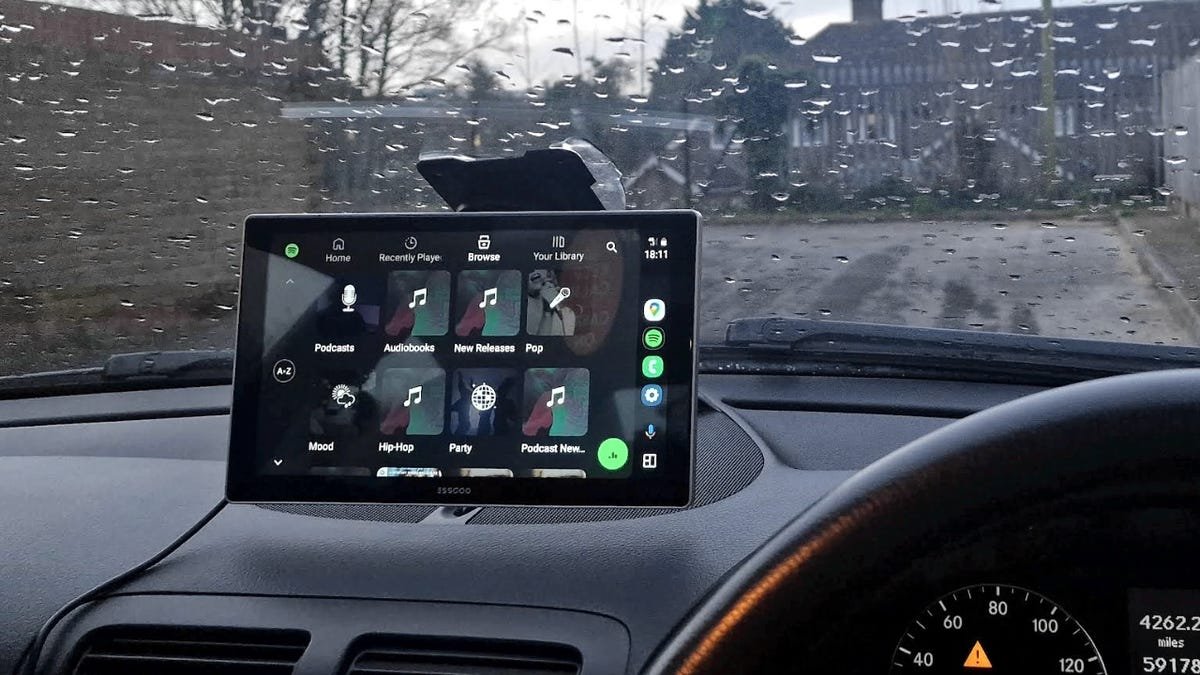
Android Auto is a highly convenient, albeit underused, feature available in most modern cars. Even if your vehicle doesn’t support it natively, you can buy an inexpensive Android Auto display and enjoy your phone’s features safely while driving. A relatively unknown shortcut, however, can help you easily automate these everyday tasks from your car.
While Android Auto gives you safe access to your phone’s navigation, messages, calling, and more while driving, using the Custom Assistant shortcut lets you trigger preset actions and automations to control anything you can do with your phone.
Also: Having Android Auto issues? How users are handling persistent connection drops lately
And the recent addition of Google Gemini to Android Auto makes the interface even more useful for handling complex commands via shortcuts that are as easy to run as pressing a button.
Imagine driving around and using Android Auto to prepare your home for your arrival by setting the A/C to a cooler temperature and turning on the lights. Here are some examples of shortcuts you could create with this feature:
- “Navigate to the nearest X gas station.”
- “Play the latest episode of Y podcast.”
- “Tell Z that I’m on my way.”
- “I’m coming home.”
- “Navigate to work.”
Also: You can use Google Meet with CarPlay now: How to join meetings safely in your car
A simple “I’m leaving for work” routine can trigger your HVAC to go into Eco or energy saving mode, ensure all your lights are off, and run a robot vacuum while you’re out, for example.
How to set up the Custom Assistant on Android Auto
The Custom Assistant shortcut is in the settings, so many people aren’t aware of it, but it only takes a minute to set up.
- On your Android phone, open the Android Auto settings.
- Select Customize launcher.
- Go to Add a shortcut.
- Tap on the Assistant action.
- Enter a custom command of your choosing.
To try it out, just connect your phone to your car or an Android Auto device, and you’ll find the new shortcut as an app icon you can tap to run it. The shortcut should work as intended, but you can always tweak your wording in the settings if it doesn’t.
Also: Your Android Auto just got 5 useful upgrades for free – and Google isn’t done
Since these shortcuts are tied to your Google account, not your car or Android Auto display, they’ll be available in any vehicle where you use Android Auto.
Keep in mind that these shortcuts require a cell signal, so they may fail in areas with no coverage.